Experimental Features
About Experimental Features
Turn on experimental features to try what’s new while we’re still putting on the finishing touches. They’re ready to use, but we’re still tinkering. So things may change (or occasionally disappear) before they’re officially released.
Once switched on, they’ll be available to everyone in your company. We’ll email you whenever a new experimental feature lands in your account, and might check in to see what you think. Switch off whenever you like.
Just go to Settings -> Experimental Features and turn on the toggle.
Can’t see Experimental Features? One of your Management-level users will need to switch it on for your company. Once they have, everyone in your company will have access.
What's currently live and being tested
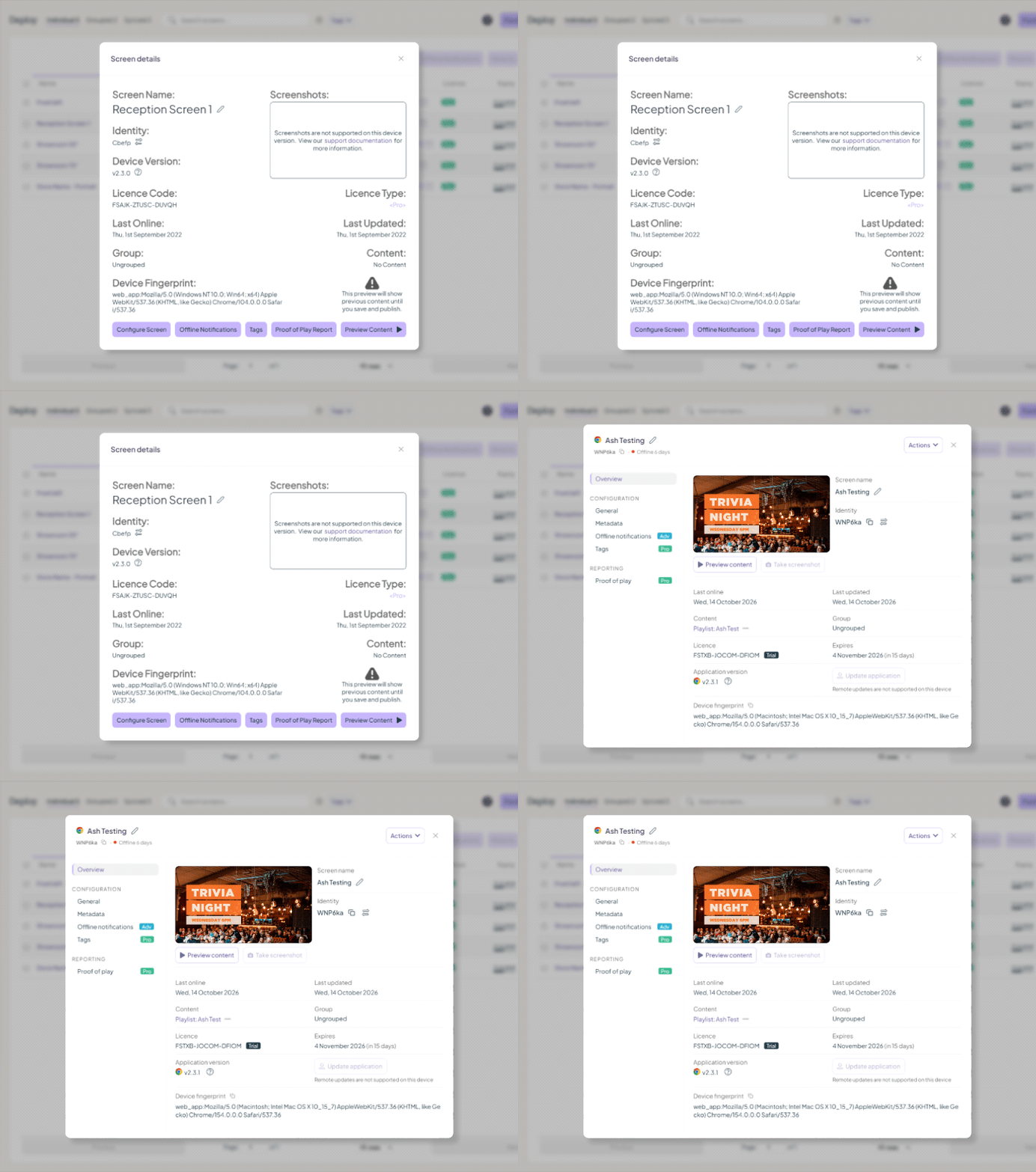
Screen Details Modal Glow-up
UPDATED: 20 OCT 2026
Feature licence level: All
What it is: We've given the Screen Details modal a makeover. Screen information is easier to find, simpler to navigate, and configuring your settings is now a breeze. Who doesn't love a good glow-up story?
Who it is for: Everyone
How to try it:
- Go to Deploy
- Select your screen name to view the modal
Who is to thank: Our clever devs. We spotted room for improvement and got to work.
Why it’s so neat: Tidy modal, tidy mind.
Content Level Scheduling - Status indicator
UPDATED: 8 OCT 2026
Feature licence level: Advanced and Pro
What it is: See if scheduled content inside your playlist is live or inactive, at a glance. This is what Jack asked for, so we created the content scheduling status indicator. Simply hover over the scheduling (calendar) icon on a media item to see its current status. See more, when you need it. Thanks, Jack.
Who it is for: Advanced and Pro
How to try it:
- Hover over the scheduling (calendar) icon on a media item
- See its status – active or inactive
Who is to thank: Jack asked for this one, and now it’s ready to try. Thanks, Jack.
Why it’s so neat: See more when you need it.
Updated Sub-Nav on the left menu
UPDATED: 6 OCT 2026
Feature licence level: All
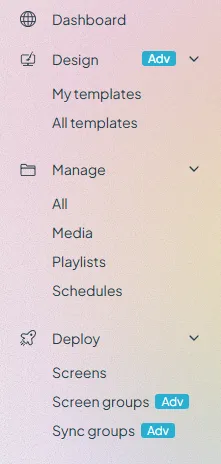
What is is: We are wanting to provide users with easier access to sub-menus within Fusion Signage. Instead of showing only Dashboard, Design, Manage, and Deploy, the expanded sub-nav will provide quick links to templates, media, playlists, schedules, screen groups and sync groups.
While this will benefit existing customers by providing a way to quickly navigate to each area, we hope it will provide more clarity to new customers and customers on trials as to the important elements within Fusion Signage and what they should do next.
Who it is for: Everyone
How to try it:
- Login and see the new sub-nav in the main menu on the left-side
- Click the down arrows to hide and unhide the sub-nav items
Who is to thank: James, our co-owner. He wanted to make navigation easier, and for you to test it today. Let James know what you think!
Why it's so neat: Quicker navigation = digital signage in a flash
Please send any feedback to us at [email protected]